
Build
Create a sim setup
Put your robot in a world: pick or import an environment, place objects, check it fits.
A sim setup is your robot in a world. One robot can have many: a full warehouse for real tests, an empty grid for quick ones.
Environments
Assets → Environments lists the built-in worlds. To use your own, press Import USD. Upfreq checks it opens, uses metres, has colliders, then syncs it to your GPU. The painting robot uses its own paint_wall_room.usd.
Environments
Assets · 10 built in · 1 of yours
Import USD
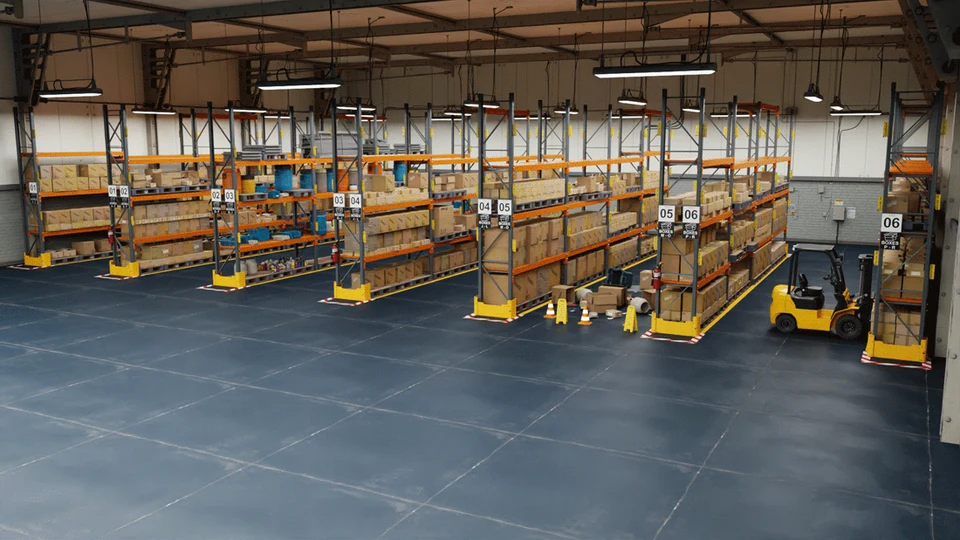
Full warehouseReady
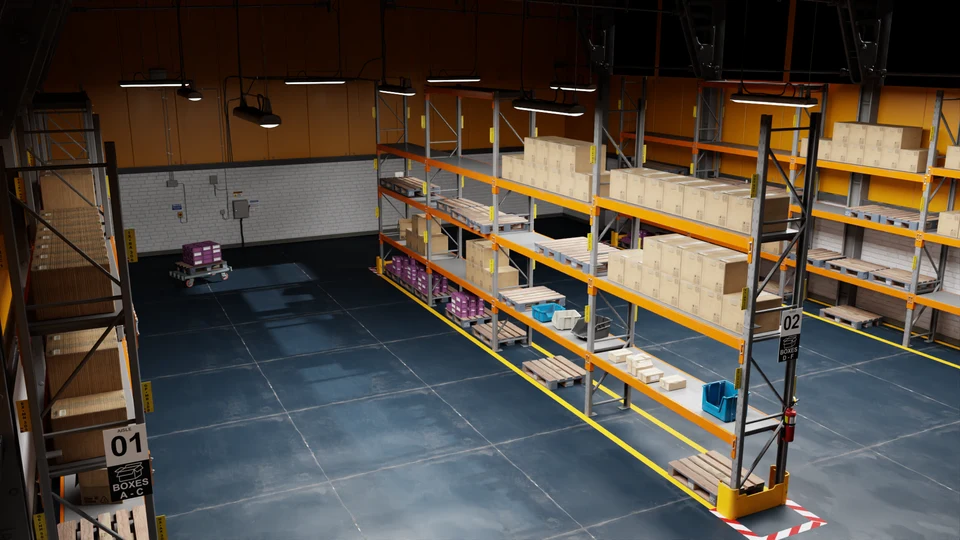
Warehouse with shelvesReady
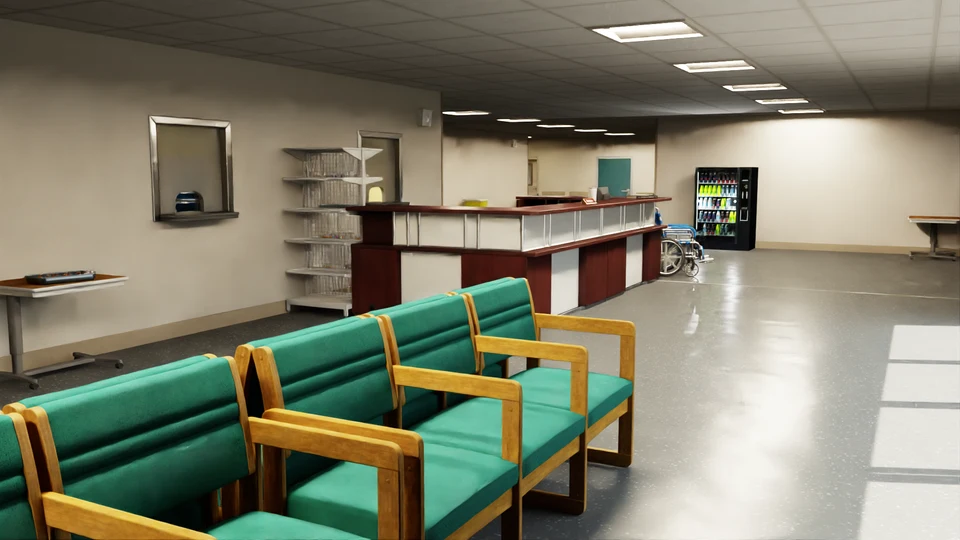
HospitalReady
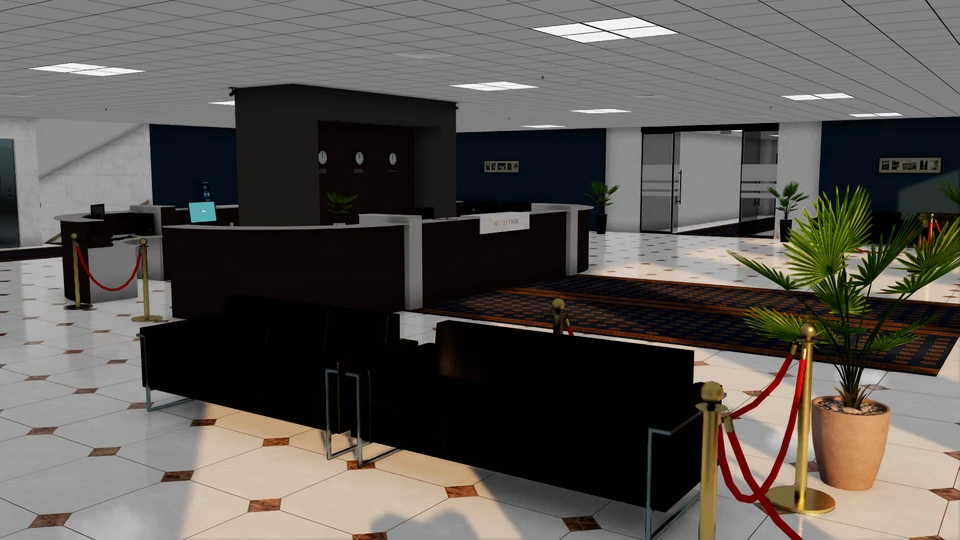
OfficeReady
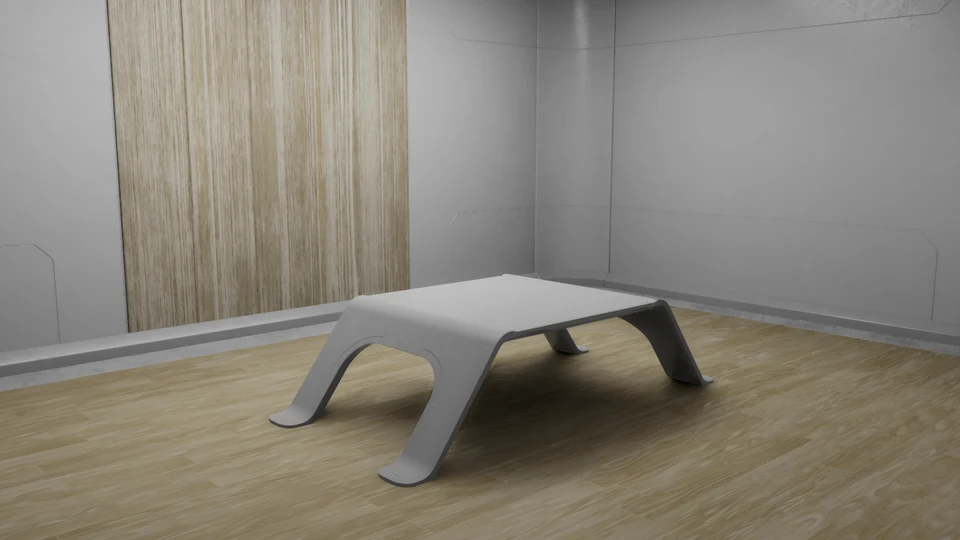
Simple roomReady

Grid roomReady
Your own
paint_wall_room.usd
12.4 MB · dropped just now
Opens in simulation
Units in metres, Z up
Colliders on 14 meshes
Syncing to your GPU
68%
Create the setup
- New session → Create a sim setup.
- Choose the robot and the environment.
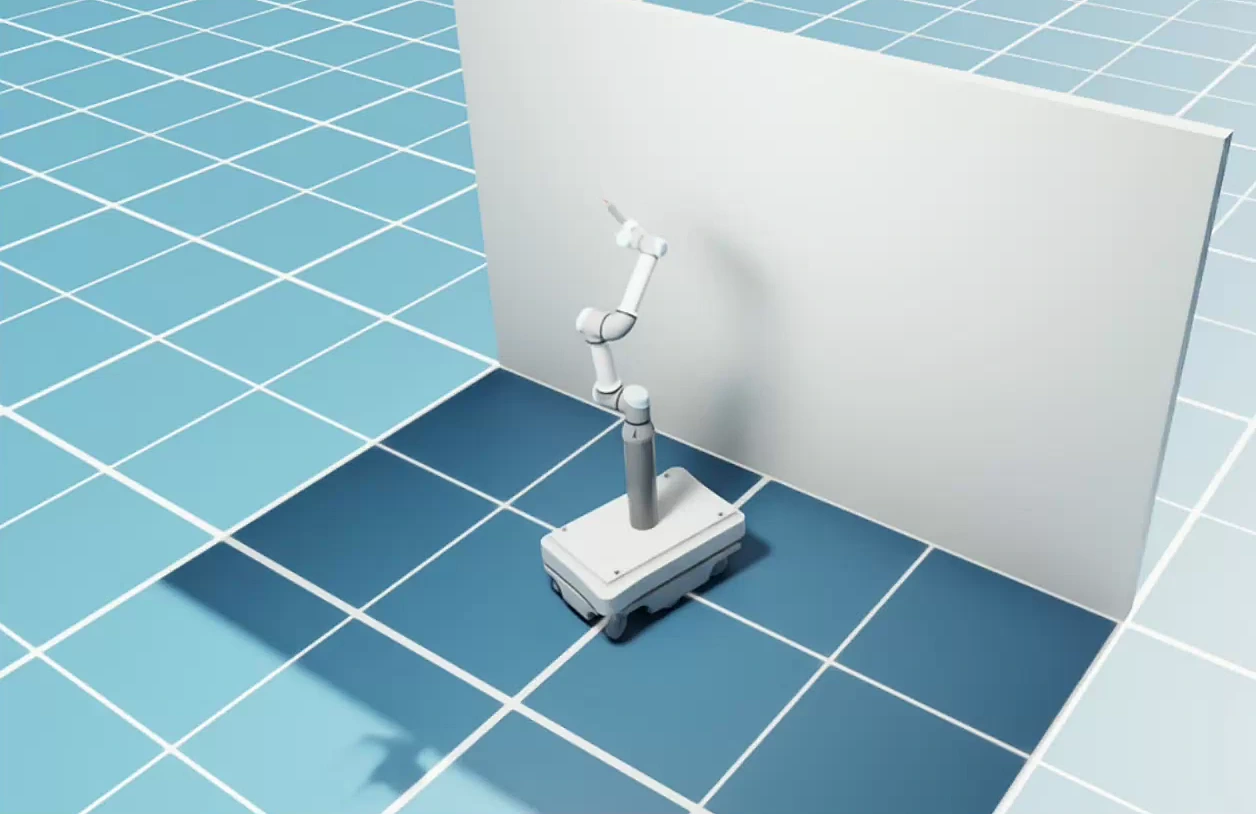
- Add objects and place them with x, y and rotation. Here: the paint wall 2 m ahead, and a paint bucket.
- Set where the robot starts.
- Upfreq checks it fits on your GPU. Press Save & sync.
Painting robot at the paint wall
Sim setup · Running · preview on your GPU
Save & sync
Robot
Painting robot · mobile manipulator · v2
Environment
Paint wall roomFull warehouseHospitalOfficeGrid room
Objects in the scene
Paint wallx 2.0 y 0.0 ° 90
Paint bucketx 0.4 y -0.6 ° 0
Add objectRobot starts at
x 0.0 y 0.0 ° 0 Needs 3.1 GB of GPU memory · fits
 Preview